
Stagewise: Make Precise UI Tweaks in Cursor by Clicking the Element
Stagewise is a Cursor plugin that lets you click a real UI element in the browser and hand the AI its exact div and class, so the last bit of polish gets fixed precisely instead of guessed at.

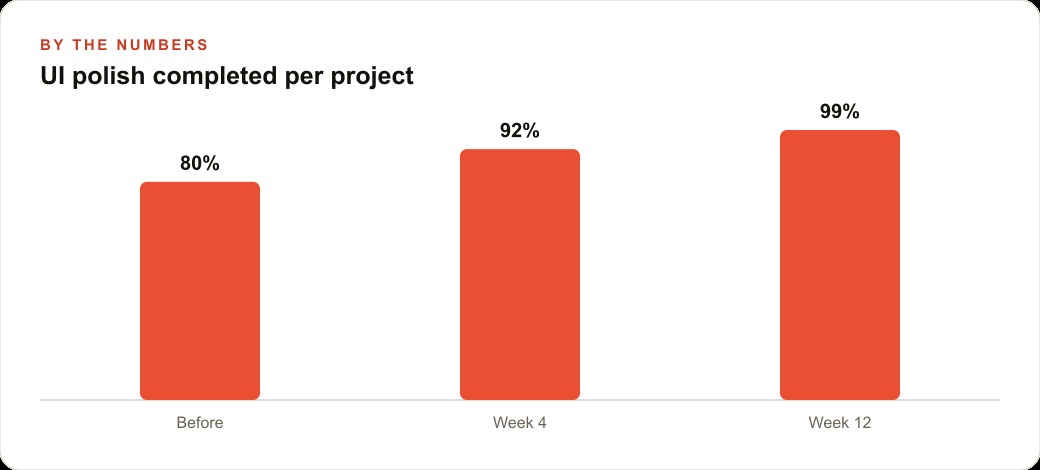
I have built enough interfaces with Cursor to know exactly when the workflow breaks down. It is not at the start, when you are generating the first screen and things are coming together fast. It is at the end, when the screen mostly works and mostly looks right, and you need to fix the last ten to twenty percent of visual problems that are genuinely difficult to put into words. The button corners are slightly too sharp. Two elements that should sit on the same row are stacked. The card padding feels cramped on a phone. You know exactly what you want when you look at it. You have almost no idea how to say it in a way that produces the right change in a text prompt. I am Madhuranjan Kumar, and this is the problem that Stagewise exists to solve. What follows is not a setup guide. It is an account of what I understood differently about AI-assisted development after I started using it.
The gap between code that runs and code that looks right
The first few hours of building a UI with Cursor are unusually satisfying. You describe what you want in plain language and screens appear. Layouts that would have taken a full day to build manually take twenty minutes. The architecture is correct, the data flows properly, and the core interactions work. Then you hit the wall.
The wall is not a code error. The code is correct. The wall is the accumulation of small visual details that are wrong in ways that are hard to express as instructions. A margin that needs to be slightly larger. A flex layout that is not quite aligned. A hover state that uses the wrong shade of the brand color. A button that reads fine on desktop but wraps to two lines on a phone screen. Each of these is a real problem that affects how the interface feels, and none of them is easy to describe precisely enough for a text prompt to produce the right fix on the first try.
The standard approach is to write a description and iterate. You write "make the button padding slightly larger," Cursor changes it, you reload the page, it is now too large, you write "a bit smaller than that," Cursor changes it again, you reload, and the session continues. This loop works eventually but it is slow, and the slowness is entirely in the description step. You are not slow because you do not know what you want. You are slow because describing a visual element precisely in text is a different skill from seeing what is wrong with it and knowing what would fix it. Those are visual judgments, and text is a lossy encoding of them. Every round trip through the description-edit-reload loop loses a little of the precision you started with, which is why these sessions often end with something close to what you wanted but never exactly it.
There is also a category of visual problems that are nearly impossible to describe without pointing. Not because they are subtle, but because their location description becomes longer than the fix itself. "The button in the bottom right of the pricing card in the third tier column on the pricing page" is eleven words of location before you have said anything about what you want to change. Stagewise replaces all eleven words with a click.
What clicking instead of describing actually changes
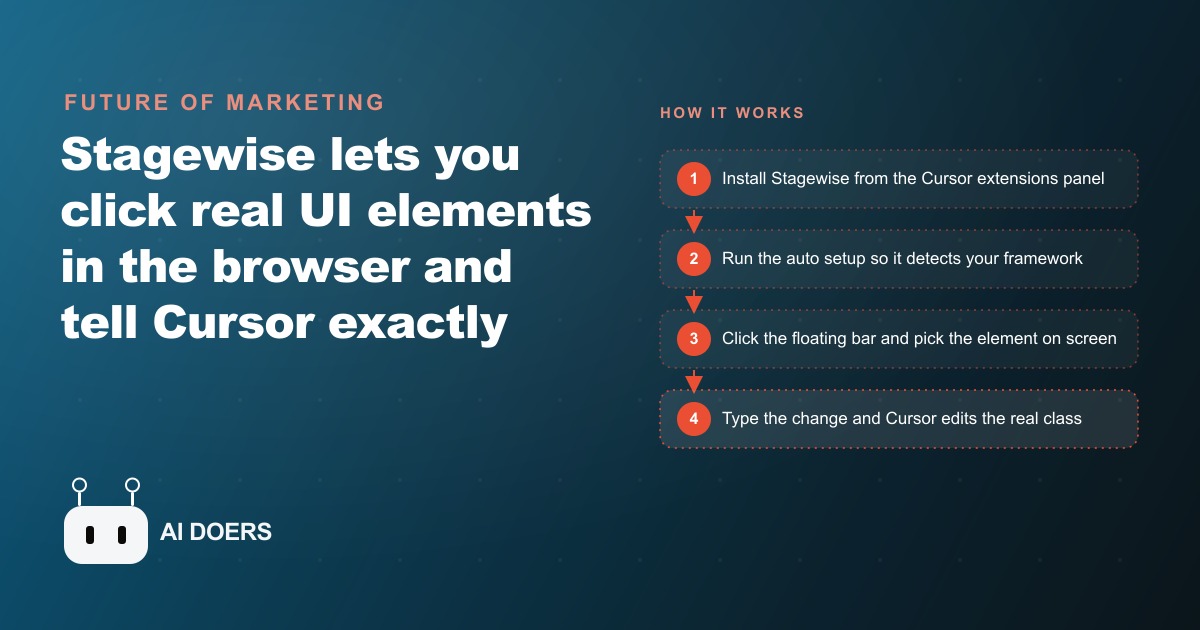
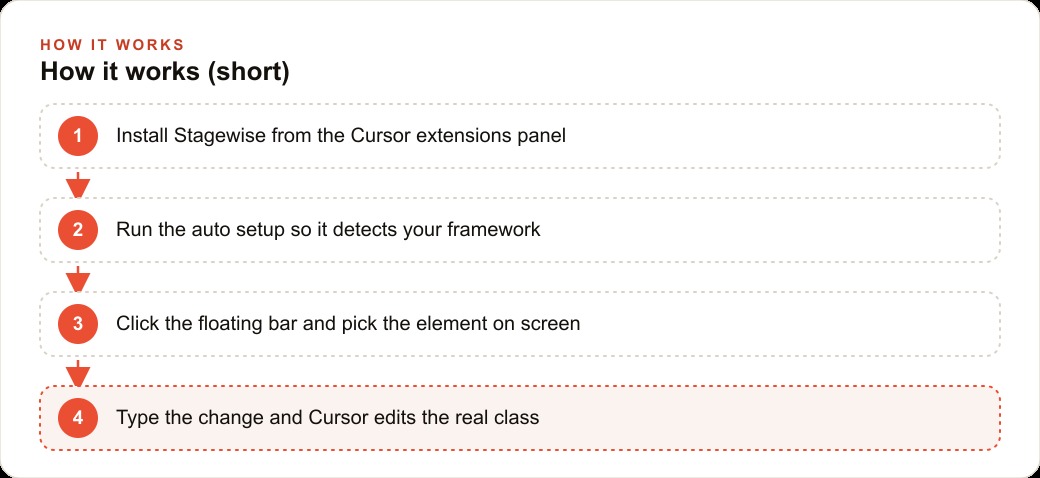
Stagewise changes the interaction model in a simple but fundamental way. Instead of describing which element you mean, you click it. Instead of writing a paragraph to locate a specific button, you move your cursor to that button on the live running page and click it. The element is selected. You type what you want to change about it. That is the whole interaction.
The reason this works better than description is that clicking eliminates the translation step entirely. When you describe an element, you are translating a visual memory into language, and then the AI is translating that language back into code. Each translation loses precision. When you click the element, there is no translation. The element is specified exactly by the click, and Stagewise passes the real div and its class to Cursor along with your prompt. Cursor now has the precise context it needs. The only thing left to interpret is what you want to change about it, not which element you mean.
The class awareness is the part that produces the most leverage. Because Stagewise passes the class name rather than just the element reference, Cursor does not fix only the element you clicked. It updates every element that shares that class across the entire application. A prompt like "make these button corners more rounded" applies the change to every button that uses that class, across every page, in a single edit. This is usually exactly what you want, and it is the reason Stagewise fixes look consistent rather than leaving some buttons updated and others in the original style. Consistency, which used to require a careful search for every instance of the element you had in mind, comes for free from the way the class-level edit works.
There is also a detail worth understanding about how the prompt changes when the element is pre-specified. In a normal Cursor session, a significant portion of your prompt is spent identifying the target. All of that element-identification language disappears when you use Stagewise, because the click provides it. The entire prompt becomes the change you want to make. "Softer corners." "Tighter line height." "Left-align this text." Short, precise, and immediately actionable. The quality of the output improves because the prompt is carrying only change instructions rather than splitting its specificity between identification and instruction.
The kinds of visual problems that live in the deferred pile
It is worth naming the specific categories of visual problem that consistently end up deferred, because they all share one characteristic: they are real but hard to express cleanly in text.
Layout conflicts are the most common. Two elements that should be on the same row are stacked. A row that looks fine at 1400 pixels wraps into two lines at 800. A flex container that behaves correctly with three items breaks when there are six because a fixed width is now insufficient. These are spatial relationships that you can see and understand immediately but that take a paragraph to describe precisely enough for the right fix.
Spacing inconsistencies are the second category. Padding that is correct in one card component but slightly different in a visually identical card on another page. A margin that looks fine above a heading but cramped below it. These are the problems that make an interface look almost professional rather than professional, and they are nearly impossible to describe without pointing at the specific instance.
State styling gaps are the third category. A button that looks right in its default state but has no hover styling, or a hover color that was inherited from a utility class and is slightly off from the brand palette. These are invisible in screenshots but obvious to anyone using the actual interface, and they are the hardest to catch in a text-prompt workflow because they only appear while hovering. Stagewise handles all three through the same mechanism: you select the element in the state you want to change, type the change, and confirm. The class-level edit propagates the fix across every instance automatically.
Why the feedback loop matters as much as the tool itself
There is a structural problem in the standard AI UI iteration loop that is easy to miss because it is made up of small delays rather than one obvious bottleneck. You are in Cursor. You write a prompt. Cursor makes an edit. You switch to the browser. You refresh the page. You navigate to the element. You evaluate whether the change looks right. You switch back to Cursor. You write the next prompt. Each step is small, but the cumulative friction adds up over a long session, and the context switch between Cursor and the browser interrupts the visual reasoning you are doing. By the time you are back in Cursor evaluating the change, you are slightly less certain of what you saw in the browser than you were a few seconds ago.
Stagewise compresses this loop because you are already looking at the live page when you start the interaction. The floating toolbar appears on the running app. You click the element, type the change, and evaluate the result after the edit without leaving the visual context. The round trip is shorter and the visual reasoning is uninterrupted.
In practice this means you will make more iterations in a single sitting. When the feedback loop is tight, you catch more things and fix them before the session ends rather than adding them to a list of deferred polish items that never get addressed. The sessions where I have fixed the most visual issues are the ones where the cost per iteration was low enough that fixing one thing immediately raised my attention to the next thing. Tight loops produce more finishes than loose loops, even at the same total elapsed time. A loose loop where each iteration takes three minutes produces maybe ten iterations in a session. A tight loop where each iteration takes forty-five seconds produces twenty-five to thirty in the same time, and the difference in output quality is visible immediately.
There is also a psychological element. When iterating is cheap, you stop second-guessing whether a fix is worth making. You just make it, see if it is better, and keep going. That is the mode where visual polish actually gets done rather than getting rationalized away as "good enough for now." Good enough for now is where visual debt accumulates on sites that should look better.
Where precision compounds on a site that changes every month
The value of Stagewise is not constant. It depends heavily on how often the site or app is updated. A static site deployed once and left alone for a year gets very little benefit. A site updated monthly with new offers, testimonials, seasonal changes, or new service descriptions benefits every update cycle.
The reason is that every content update creates new opportunities for visual drift. A new testimonial section with a slightly different card structure, a promotional banner added in a hurry, a mobile layout that worked with the original menu length but wraps badly with new longer item descriptions. Each of these is a small visual issue that exists from the moment the content is added. Without a precise tool for fixing them, they accumulate. The site looks progressively less polished as the content evolves, because each update creates micro-inconsistencies that are never resolved.
With Stagewise, each update session can include a quick visual tune-up. The new testimonial card that needs slightly different padding gets a click and a one-line prompt. The promotional banner that is centered on desktop but needs to be left-aligned on mobile gets two clicks and two prompts. The total time for the tune-up might be five to ten minutes. The site stays at the same visual quality as when it was first built instead of drifting.
For a restaurant that updates the menu quarterly, adds seasonal promotions, and occasionally adds new staff photos or event announcements, the math is straightforward. Consider a booking page where the current conversion rate is around 3 percent of visitors booking a table. A consistently polished and well-maintained version of that same page might convert at 4.5 to 5 percent. For a restaurant seeing 400 visitors per month to its booking page, the difference between 3 percent and 4.5 percent is 6 additional bookings per month. At an average table booking value of 120 dollars, that is 720 dollars in additional monthly revenue attributable to the site looking consistently right. The cost of achieving that visual consistency, a thirty-minute Stagewise session once per month, is negligible compared to that return. The mechanism is simply the removal of the friction that used to prevent the visual polish from happening at all.
Setup takes about five minutes: install from Cursor extensions, open the command palette, find the Stagewise toolbar option, and let the auto setup detect your framework from your package files. No config editing by hand. Once the project is running, the floating toolbar appears at the bottom of the page. Click it, pick any element, type the change, and send. The click-to-fix loop is learnable in a first session, and what changes is not the learning curve but the expectation: that visual polish is not a separate expensive project that happens after launch when the budget is gone, but something you do in small passes whenever you are on the page anyway. The last twenty percent does not have to be hard. It just needs a different input method.
That is exactly what we do at AI DOERS. Book a private 30-minute call with Madhuranjan Kumar and we will map the fastest path to it for your specific business.
Book your call →
Madhuranjan Kumar
Madhuranjan Kumar brings 20 years of performance-marketing experience and has managed over $200 million in Facebook ad spend for brands across the United States and beyond. His expertise spans the full modern marketing stack: Meta, Google Ads, TikTok, email automation, CRM, and the websites that hold it together. At AI DOERS he turns that track record into lead-generation systems for businesses across every industry.