
OpenAI Finally Released Open-Source Models. Here Is How to Run GPT-OSS Locally and Why It Matters for Your Business
OpenAI's open-weight models can now run on your own laptop or desktop, putting capable AI in a fully private environment with no monthly fees and no data leaving your machine. Here is how to install it and what kinds of businesses benefit most from local AI.
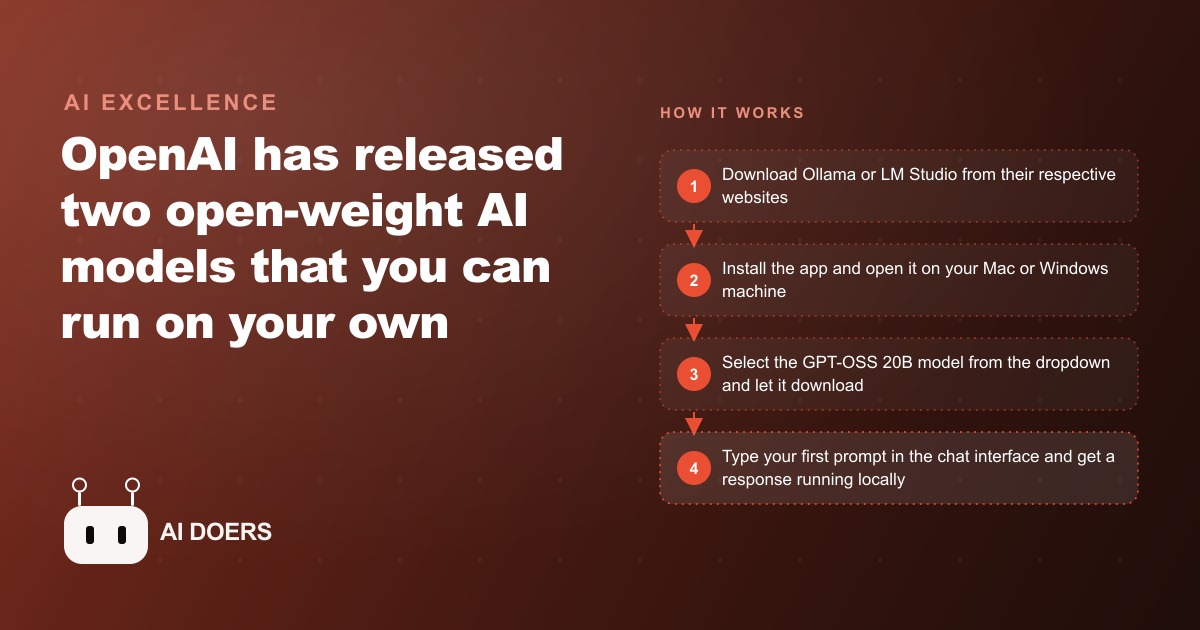
OpenAI's open-weight models can now run entirely on your own hardware, with no prompt leaving your building and no per-query cost after setup. I am Madhuranjan Kumar, and what follows is the step-by-step path from deciding to try local AI to having a working, private setup that can handle real business tasks. Each step is concrete and each one depends on the previous one being done first.
Confirm your hardware before downloading anything
The first decision in the local AI setup process is matching the model to your hardware, because running the wrong size model on insufficient hardware produces a result that is either extremely slow or nonfunctional. The two GPT-OSS models OpenAI released have different requirements. The 20 billion parameter model is designed to run on high-end laptops, specifically machines with sufficient unified or dedicated memory to hold the model weights in fast access. The 120 billion parameter model requires a powerful desktop with dedicated GPU memory well above what consumer hardware typically provides.
For most individual business users and most small business setups, the 20B model is the correct starting point. The right baseline for the 20B model is a machine with at least 32 gigabytes of RAM, with 64 gigabytes providing noticeably better performance. Apple Silicon Macs in the M3 Max or M4 Pro tier with 64 gigabytes meet this bar comfortably. High-end Windows machines with a capable GPU and sufficient system RAM also qualify.
Check the actual RAM in your machine before proceeding. On a Mac, this appears in About This Mac. On Windows, it is visible in System Information. Attempting to run the 20B model on a machine with 16 gigabytes of RAM will produce responses so slow as to be unusable in a real workflow. The hardware check takes thirty seconds and prevents a frustrating experience that might lead to dismissing local AI as impractical when the actual issue was a mismatched setup.
The storage check matters too. The model weights for the 20B model occupy approximately 12 to 13 gigabytes on disk. Confirm you have at least 20 gigabytes of free space before initiating any download. Running out of disk space mid-download produces an incomplete model file that requires starting over.
Download and install Ollama or LM Studio
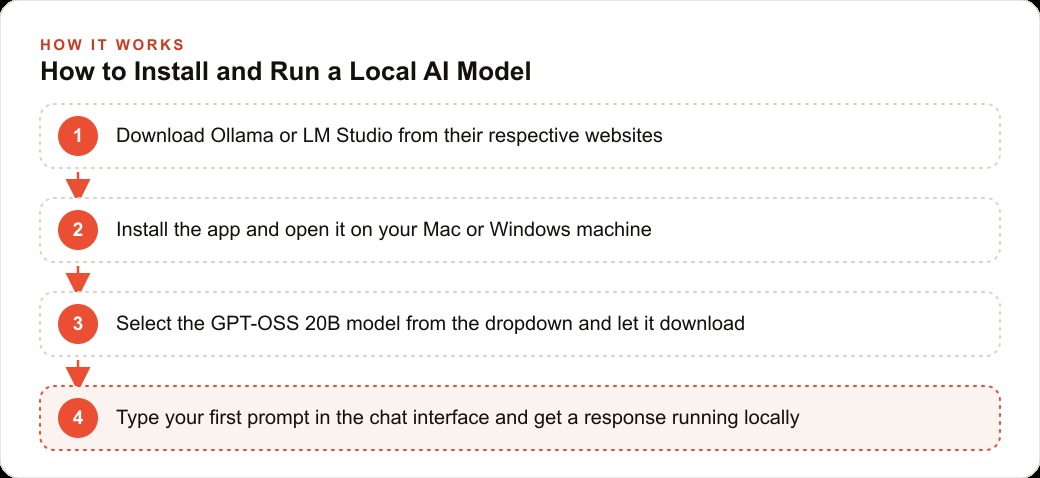
Ollama is the simpler of the two main options for running local models. Go to ollama.com and download the application for your operating system. Installation is the same process as any desktop app: download, open the installer, follow the prompts, and the application is ready. Ollama requires no terminal commands to install and no technical configuration during setup.
LM Studio is an alternative with a different visual interface that some users find more comfortable. It offers similar core functionality: model management, local inference, and a chat interface. Download it from lmstudio.ai if you want to compare both before settling on a primary tool for your workflow.
Both options are free. Both support the GPT-OSS models. The choice between them affects the interface you work in daily but not the underlying model performance. A common approach is to install Ollama first, run a few sessions, and then try LM Studio to see which interface fits your workflow better. The models can be shared between them so downloading twice is not necessary.
Pull the right model for your machine
In Ollama, models are downloaded through a dropdown in the application interface. Open Ollama after installation, navigate to the model library, and find the GPT-OSS models. Select the 20B model and initiate the download. The download pulls approximately 12 to 13 gigabytes from the internet, so schedule this step when you have reliable internet access and do not need the bandwidth for something else. Depending on your connection speed, the download takes 15 to 45 minutes.
The model appears in your local model library after downloading and is available for offline use indefinitely without needing to re-download. The model weights live on your local disk. After the initial download, no internet connection is required to use the model.
When running a model for the first time, Ollama may ask whether you want to see the model's reasoning steps displayed during responses. This is an option, not a requirement. Seeing the reasoning is useful for understanding how the model approached a problem but adds length to responses. You can enable or disable it per session depending on the task.
LM Studio users follow a similar process through that application's model browser. Search for the GPT-OSS models, select the 20B version, and download it. LM Studio also shows multiple quantization options for the same base model. Quantization is a compression technique that trades a small amount of model quality for a significant reduction in file size and memory requirements. The Q4KM quantization is a commonly recommended balance for most hardware setups. If your machine has more than 64 gigabytes of RAM, you may want to try the Q5 or Q6 quantization for slightly better quality at the cost of somewhat higher memory use.
Run your first private prompt and verify nothing left your building
After the download completes, open a chat session in Ollama or LM Studio and type a prompt. The first response in a session takes longer than subsequent ones because the model loads from disk into memory. On a capable machine this takes 10 to 30 seconds. After the model is loaded, responses within the same session arrive faster.
The key verification step is confirming that the model is genuinely running locally. Disconnect your internet connection and send another prompt. If the model continues to respond, the setup is genuinely local and no data is leaving your device. If the model stops working without an internet connection, something in the configuration is still routing prompts through an external service and the setup needs to be checked.
For a business handling confidential data, such as a law firm handling privileged documents, a healthcare practice working with patient notes, or an agency processing proprietary client strategies, this verification step is the one that matters most. The privacy benefit of local AI is only real if the prompts actually never reach an external server. The disconnect test confirms the setup rather than taking it on faith.
Connect your actual business documents to get useful answers
A local model running in its default configuration is a general-purpose AI assistant. It knows what it learned during training but has no knowledge of your specific business, your clients, your services, or your actual operational data. The step that transforms it from a capable general tool into a genuinely useful business tool is connecting it to your real documents.
This is done through a retrieval pipeline, sometimes called RAG (retrieval augmented generation), which stores your documents in a format the model can search efficiently. When you ask a question, the system finds the relevant sections of your documents and passes them to the model as context. The model then answers from your actual content rather than from general knowledge.
For an accounting firm, this might mean loading a collection of tax guidance documents, prior year filings (with client data anonymized for the local system), and internal process documentation. For a marketing agency, it might mean loading all client strategy briefs, performance reports, and brand guidelines. For a real estate agency, it might mean loading neighborhood analysis reports and comparable sale summaries. The connected documents become the knowledge base the model answers from when asked operational questions.
Several tools make this retrieval setup accessible without requiring technical configuration. AnythingLLM is a commonly used option that connects to Ollama, accepts document uploads, and provides a chat interface where the model answers from your documents. The setup takes an hour, not a development project.
Decide which tasks stay local and which go to the cloud
Local AI is the right choice where privacy is the primary concern, cost at scale is significant, or offline access is needed. Cloud AI is the right choice where maximum quality is the priority, tasks are not sensitive, or the local hardware is insufficient for the model required.
For an accounting firm or a legal office, the right division is typically: client-facing documents and anything containing identifying information stay local. General research, drafting from non-sensitive templates, and competitive analysis where no client data is involved can use cloud models. This hybrid approach gets the privacy protection where it matters without sacrificing the quality ceiling that frontier cloud models provide for general tasks.
For a marketing agency, the division might be: strategic documents that reveal client campaigns and creative approaches stay local, while general content drafting, competitive research, and ideation that does not reference specific client data uses cloud models. The agency gets local protection for its most sensitive intellectual property while using the best available cloud tools for general production work.
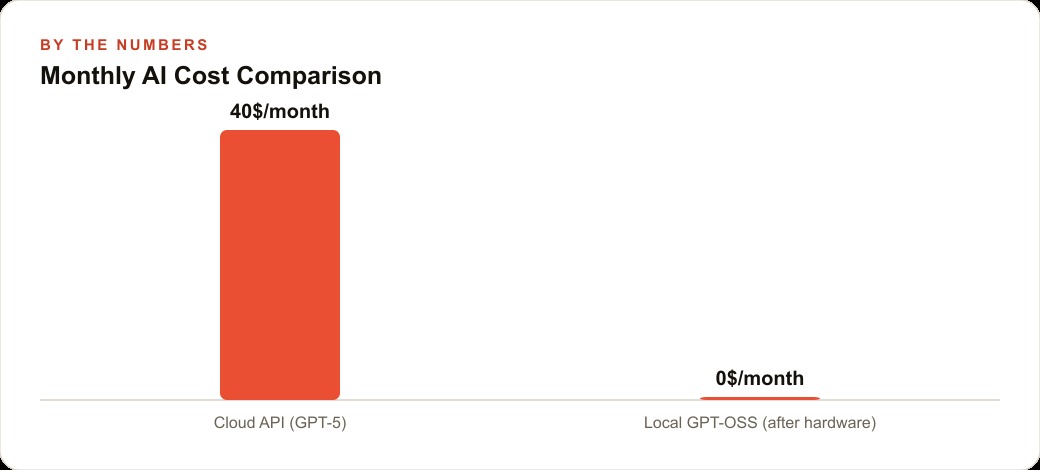
For a business whose primary concern is cost rather than privacy, the calculation is simpler. Identify which tasks generate the highest AI API costs, check whether the local 20B model handles those tasks at acceptable quality, and shift those specific tasks to local execution. The tasks where the frontier cloud model's superior quality justifiably justifies the API cost stay on the cloud. The marginal cost of the local model for everything else drops to electricity.
The setup across these six steps takes an afternoon of active work plus the model download time. The result is a private, capable AI setup running on hardware you control, with no prompt leaving your building and no per-query cost after the initial hardware investment. For any business that has been avoiding AI tools because of data privacy concerns, this setup removes the primary barrier without compromising on the capability needed to do real work.
That is exactly what we do at AI DOERS. Book a private 30-minute call with Madhuranjan Kumar and we will map the fastest path to it for your specific business.
Book your call →
Madhuranjan Kumar
Madhuranjan Kumar brings 20 years of performance-marketing experience and has managed over $200 million in Facebook ad spend for brands across the United States and beyond. His expertise spans the full modern marketing stack: Meta, Google Ads, TikTok, email automation, CRM, and the websites that hold it together. At AI DOERS he turns that track record into lead-generation systems for businesses across every industry.