
How to Get 10x More Out of Google Gemini With Settings Most People Ignore
Keep activity on, fill in account-wide instructions with your identity, goals, and your why, and build Gems with the prompt enhancer and only the tools each task needs. The model is already strong, configuration is what unlocks it.

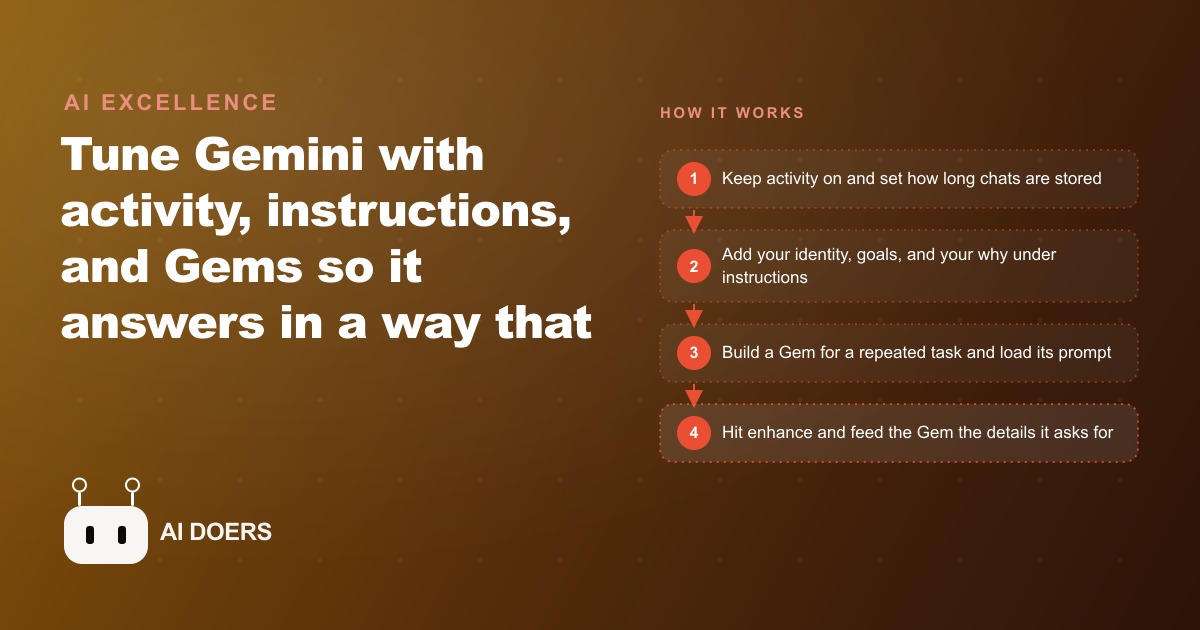
The free Gemini model, accessed with a standard Google account at gemini.google.com, is already competitive with what the largest AI labs are charging premium prices for. Most people who dismiss it as average have never opened the settings panel. The gap between a flat, generic Gemini response and a response that accounts for your industry, your current goals, and the specific format you need is not a newer model or a paid subscription. It is configuration, and the configuration available today takes one afternoon to set up properly.
The seven settings below are the ones most users skip entirely. Each one changes something concrete about the quality of output you receive.
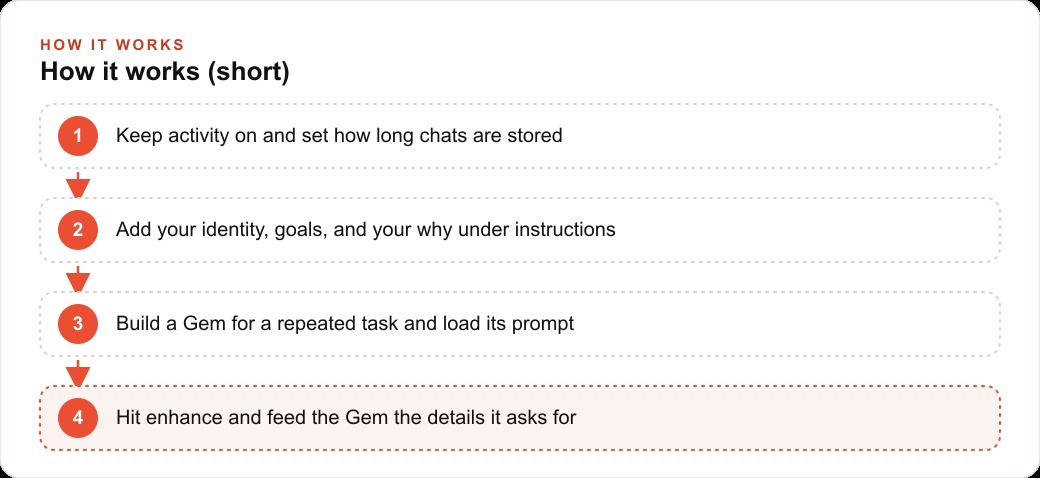
1. Activity settings: the toggle most users flip off and immediately regret
The activity panel lives in the side menu. It controls how Gemini stores your conversation history. Most privacy-conscious users turn it off as soon as they see it and never revisit the decision.
Here is why that choice costs more than it saves. Keeping activity enabled is what allows Gemini to use your prior sessions for context and personalization. Several of the features in the layers below, including how the instructions setting functions across sessions, depend on history being accessible. Turning it off reduces the model to a stateless tool that treats every conversation as entirely new, with no memory of your work, your terminology, or your recurring questions.
The better approach is to keep history on and choose a retention window you are comfortable with. Thirty days, ninety days, eighteen months: the choice depends on how long you want the model to retain access to your prior sessions. Workspace users adjust this in the admin console at admin.google.com rather than in the chat interface directly. Consumer accounts set it from the activity panel inside Gemini. Either way, the auto-delete setting handles cleanup at the end of your chosen window. Privacy is maintained without losing the context benefits that make later layers in this list actually useful.
Practical use: a business owner running weekly planning sessions keeps history on with a ninety-day window. The model builds a working picture of ongoing projects, recurring client questions, and standing preferences over time, which shortens the setup at the start of each new session from several minutes to nothing.
2. Your professional identity in instructions: written once, present in every chat
The instructions panel, reached from the settings menu, is where you record information about yourself that Gemini carries into every chat you open. Unlike memory features that auto-populate from your conversations, this layer requires you to write the information yourself. That turns out to be an advantage: it forces you to think carefully about what context actually changes your outputs rather than leaving it to an automated system to decide what matters.
The first thing to write is your professional identity. Not your job title alone, but the shape of your work: what industry you operate in, what kind of decisions you regularly make, how long you have been doing this, and what categories of questions you most often bring to an AI tool. A description that says "I run a ten-person construction business focused on residential additions in the Pacific Northwest" produces fundamentally different framing from Gemini than instructions that are blank.
What changes specifically: the model stops treating your questions as coming from a generic user and starts treating them as coming from someone with particular context. When you ask about material costs, it factors in your industry. When you ask about client communication, it understands your relationships are project-based and multi-month. When you ask for help with a proposal, it understands what a proposal in your field actually contains and what makes one strong.
Practical use: a marketing consultant adds a paragraph describing their typical client size, the deliverables they regularly produce, and the platforms they primarily work within. Every subsequent chat produces more targeted output without the consultant re-establishing that context at the start of each session.
3. Your goals in instructions: specific enough to steer actual recommendations
The same instructions panel holds more than identity information. It should hold your current goals as well, and the specificity of those goals determines how useful the model can be in connecting your questions to your actual strategic situation.
Abstract goals like "grow the business" give the model nothing to orient toward. A specific goal like "close three new B2B clients in the manufacturing sector this quarter, with contracts averaging around $25,000" gives the model enough to make recommendations, filter suggestions, and prioritize what is relevant to your real situation. The model can only steer toward a destination it knows. Vague destinations produce vague steering.
What changes: Gemini begins connecting your day-to-day questions to your strategic situation automatically. When you ask for help with a follow-up email, it understands the follow-up is part of a B2B closing process at a specific price point. When you ask for a competitive analysis, it understands what you are competing for and at what level. The answers become more useful without you providing that context again in every prompt.
Practical use: a freelance designer lists their active projects, their target monthly revenue, and the number of clients they want to carry at any given time. Recommendations from Gemini about workload, proposals, and pricing reflect that specific situation rather than generic advice for designers in general.
4. The why behind your goals: the layer almost no one adds
Most people who engage with the instructions panel write their identity and their goals and stop there. The third layer, which has the largest effect on output quality over time, is the why behind those goals.
The why is not a philosophical statement. It is a description of what you are ultimately trying to build and what it would mean for you personally if you achieved it. A consultant whose goal is to land three new clients this quarter might have a why that says "I am building a boutique practice where I work with a small number of clients very deeply, and I have enough margin to take Fridays offline without worrying about cash flow." That why changes how the model interprets ambiguous situations. When the model knows you value depth of client relationship over client volume, and you value time autonomy, its suggestions about pricing, capacity, and offer structure will naturally favor approaches that serve those values rather than maximizing transaction count.
What changes: the model stops optimizing for the surface-level metric and starts optimizing for the actual outcomes you want. Two people with identical professional identities and identical quarterly goals but different whys should receive meaningfully different advice, and with the instructions layer filled in correctly, they do.
Practical use: a real estate agent whose why is "I want to be the person families in my neighborhood trust for the most significant financial decision of their lives" receives different referral-building and communication recommendations than an agent whose why is "I want to maximize transaction volume before I retire in four years." Both are legitimate goals. The model should serve each one differently, and with the why layer written out, it does.
5. Gems: a reusable assistant built for exactly one job
Gems are Gemini's version of custom assistants. Each one is built for a single task, given a name, loaded with a prompt you would otherwise retype every session, and saved so it appears in the sidebar whenever you need it.
The single-task constraint is what makes Gems reliable. An assistant that does everything is harder to depend on than one that does one thing consistently well. A Gem built specifically to draft client follow-up emails knows its job, stays in its lane, and produces more consistent output than a general-purpose assistant you describe the same task to fresh each time, with inevitable variation in how the description lands.
Building a Gem involves three steps: name it, describe what it does in one or two sentences, and load the prompt you would otherwise re-enter manually. The description matters because it helps the system route your requests appropriately inside the Gem. The prompt is the actual working instruction that defines what the Gem does.
What changes: instead of spending the first two minutes of every session re-establishing context and format, you open the relevant Gem and start working. The output quality is higher because the instructions are more precise, and the setup time per session drops to near zero once the Gem is built and tested.
Practical use: an e-commerce operator builds one Gem for product description writing, one for customer service response drafting, and one for weekly sales analysis. Each Gem opens already knowing the brand voice, the format requirements, and the relevant context. No setup time, immediate output.
6. The prompt enhancer: a feature most competing tools do not offer
Inside the Gem creation interface is a tool called the prompt enhancer. You paste in the working prompt you have written, activate the enhancer, and the system rewrites your prompt to be more specific, more explicit about goals, and more precise about format, tone, and constraints.
This is genuinely useful and genuinely uncommon. Most competing platforms leave you to figure out your own prompts or offer only vague guidance about what makes a good one. The enhancer produces a concrete improved version of your specific prompt that you can read, evaluate, and modify before saving it as the Gem's working instruction.
The enhanced version typically adds structure that the original prompt lacked: a statement of the goal, a list of behaviors the Gem should always follow, a list of things it should never do, and a tone specification. Reading the enhanced version is instructive even if you decide not to use it verbatim, because it shows you exactly what the model reads as ambiguous or underspecified in your original draft.
What changes: Gems built with enhanced prompts produce more consistent output across different types of requests and handle edge cases better than Gems built from first-draft prompts. The setup investment is slightly higher but the reliability payoff compounds with every session that follows.
Practical use: a copywriter builds a Gem for social media captions. The enhanced prompt specifies the brand voice, the required length range, the character limit per platform, the types of hooks to use and avoid, and the format for returning multiple options. The Gem's output is production-ready with minimal editing rather than requiring a full rewrite each time.
7. Tool selection per Gem, and where all of this is heading
Each Gem can be configured with a specific set of tools it is allowed to use. For a writing Gem, you might enable Canvas, Gemini's built-in document editor, while disabling image generation and video creation. For a research Gem, you might enable web browsing while disabling everything else. Giving each Gem only the tools it actually needs reduces the likelihood that it reaches for the wrong one when a request is ambiguous.
This step also opens the option of attaching Drive files directly to a Gem as persistent context. A brand copywriting Gem with your brand guidelines attached as a Drive document stays within those guidelines without you mentioning them in every prompt. A Gem built for a specific client account can have the client's reference materials attached permanently rather than re-uploaded each session.
The Gmail and Calendar connectors deserve separate mention. Both are available but are currently in an experimental state, accurate for roughly eight out of ten responses. That level is useful enough to try but not reliable enough to act on without verification, particularly for anything involving scheduling or calendar data. Treat them as helpful but unverified until their accuracy improves, and confirm anything consequential before acting on it.
The direction this platform is heading is toward Gems that chain multiple tools in sequence from a single instruction. Preview features already show Gems that browse a topic, draft a post from the research, and generate an image to accompany it, all in one step. The instructions and Gems you build today carry forward into that more capable system. Getting your configuration right now means you are already invested and ready when the workflow capabilities expand, rather than rebuilding from scratch when they do. The model is already strong. Configuration is what unlocks it.
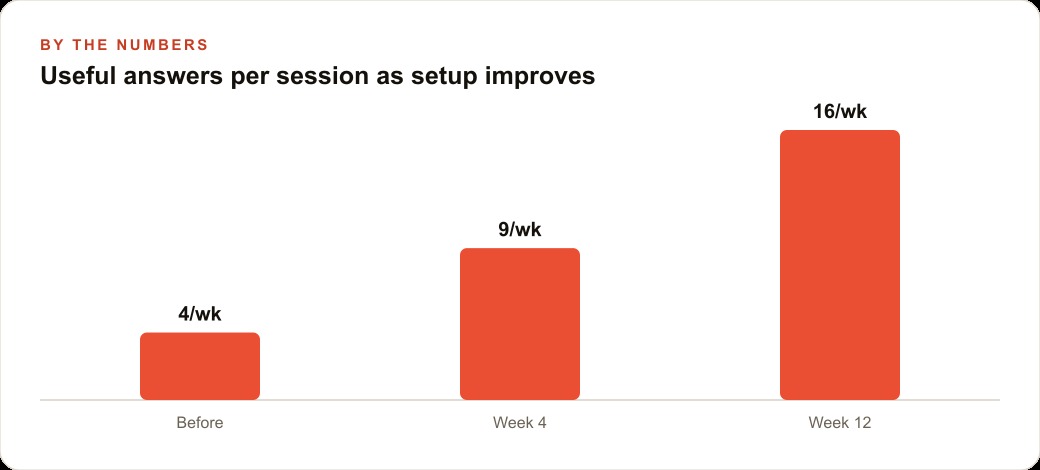
That is exactly what we do at AI DOERS. Book a private 30-minute call with Madhuranjan Kumar and we will map the fastest path to it for your specific business.
Book your call →
Madhuranjan Kumar
Madhuranjan Kumar brings 20 years of performance-marketing experience and has managed over $200 million in Facebook ad spend for brands across the United States and beyond. His expertise spans the full modern marketing stack: Meta, Google Ads, TikTok, email automation, CRM, and the websites that hold it together. At AI DOERS he turns that track record into lead-generation systems for businesses across every industry.