
How Claude Code Builds Working n8n Automations From Plain English
Claude Code can turn a plain-English description into a real, running n8n automation, but only when you give it a tool that reads the actual node documentation. Here is the difference, and how I would set it up for a real business.

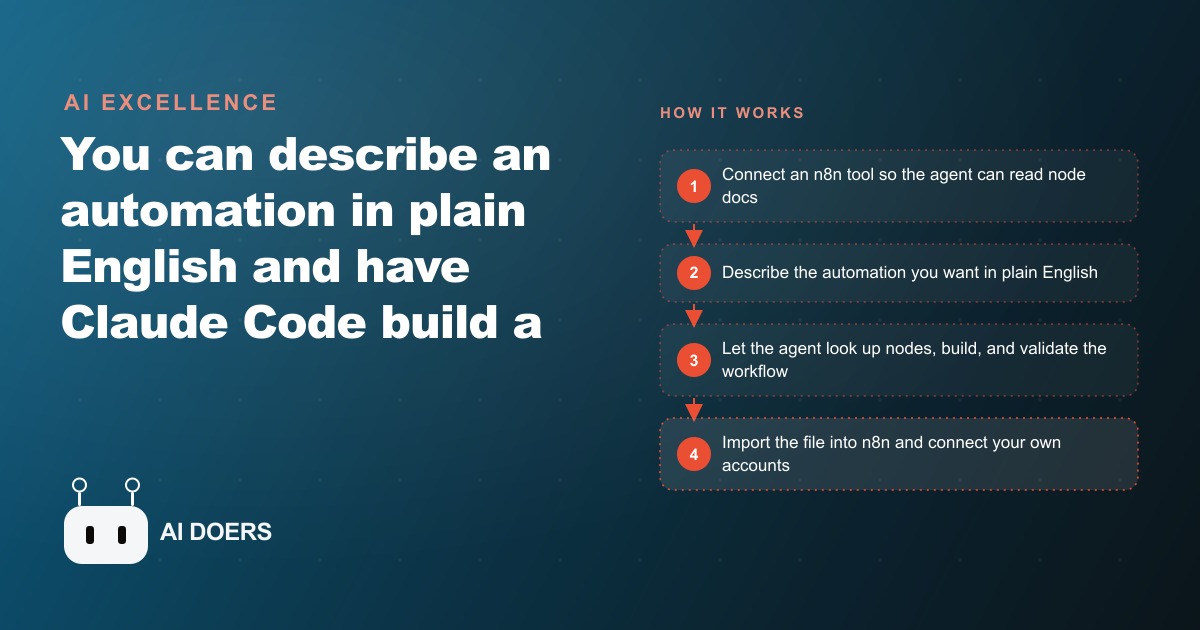
Connect the n8n tool first: this step separates working from broken
There are two ways to build an n8n workflow with an AI agent. The first way produces a file that looks like an automation and imports into n8n but breaks in real use. The second way produces a validated workflow that runs correctly from the first test. The only difference between them is one setup step that takes about five minutes.
I am Madhuranjan Kumar, and the setup step is this: connect an n8n MCP server to your Claude Code session before you describe the workflow you want. The MCP server gives the agent live access to the official documentation for every n8n node. Instead of the agent guessing at node names and input schemas from memory, which it does confidently but incorrectly when it works blind, it reads the actual specifications before it builds anything. The result is the difference between a correctly wired workflow and a plausible-looking file that fails on every trigger.
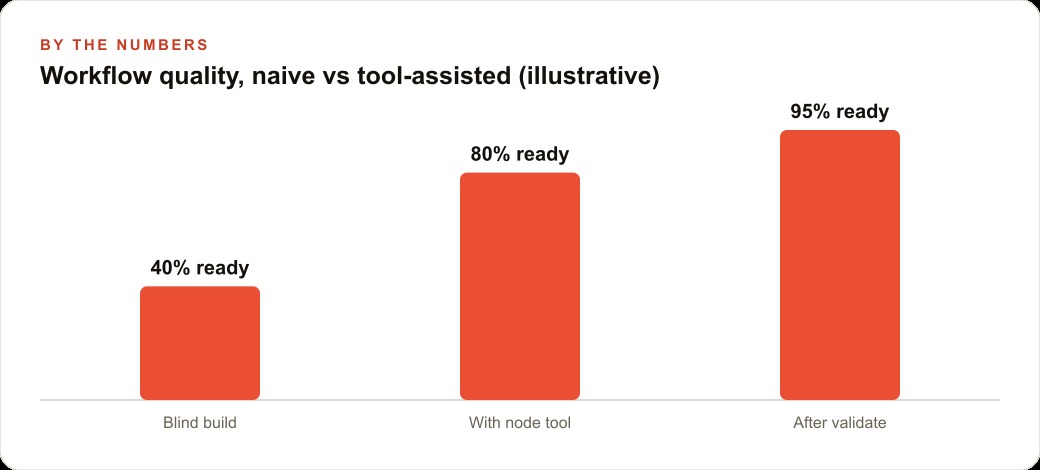
This distinction sounds minor until you have spent an hour debugging a Claude Code output that looked complete and turned out to be a pile of incorrectly configured nodes. The naive path, describing the automation and asking the agent to produce a workflow file without the MCP connection, is always tempting because it seems faster. It is not faster. It is an exercise in discovering which nodes the agent guessed wrong about, then manually correcting them, then wondering if there are more errors you have not found yet.
The MCP server is what transforms the agent from a confident guesser into a working expert. With it, the agent reads the exact input schema for a webhook trigger node before using it. It checks the expected format for a calendar node before wiring it. It validates its own output against the documentation before handing you the file. Without it, the agent fills the same gaps with plausible substitutions drawn from training data that may reflect a node's behavior from an older n8n version, or confuse one node with a similar one.
n8n exposes its node documentation through the Model Context Protocol, which means the MCP server connection is a straightforward configuration step in Claude Code rather than a custom integration. Once it is in place, every subsequent build in the same session benefits from it automatically. You do not need to request the documentation lookup explicitly every time; the agent draws on it as part of its normal build process.
Write a specific description that names the trigger, steps, and services
Once the MCP server is connected, the quality of what you build is directly proportional to the specificity of what you describe. A vague description like "build an automation that catches leads and sends a reply" leaves the agent guessing at the platform of the trigger, the format of the message, the reply channel, and what the reply should contain. It will build something, but the something it builds will require substantial manual correction.
A description that works looks like this: "When a new message arrives in a specific Telegram channel, read the message, pass it to an AI agent that checks whether it is a genuine service inquiry, and if it is, send a reply to that same channel confirming the inquiry was received and providing the expected response time, then add a row to a Google Sheet named Lead Tracker with the sender's username, the timestamp, and the first 200 characters of their message."
That description names the trigger platform, describes the decision logic, specifies the reply channel, and lists the exact fields for the sheet row. It leaves nothing for the agent to assume. Every clause maps to a node or a step the agent needs to build, so the agent can look up the right node for each step before it starts assembling the workflow.
The most common omissions in workflow descriptions are the external services. People describe the logic clearly but forget to name the platforms. "Send a reply" does not tell the agent whether the reply goes to Telegram, Slack, email, or WhatsApp. "Add it to a spreadsheet" does not specify Google Sheets or Airtable or a database. Name every external service the workflow touches, because the agent needs to look up the node documentation for each one before it can build the connection correctly.
The trigger deserves the most specificity of any part of the description. The trigger is what starts every execution, and a misconfigured trigger means the automation never fires at all, which is the hardest failure to diagnose because the system appears to be running while producing no output. Describe the trigger with its platform name, the event that fires it, and any filter conditions that narrow which events it should respond to.
Let the agent read node docs before it touches the workflow file
With the MCP server connected and the description written, the next step is to let the agent work through its research phase before it produces anything. The correct pattern is: describe the workflow, ask the agent to identify the nodes it will need, and then ask it to look up each node's documentation before building.
This research phase is where the MCP connection earns its value. The agent opens the n8n documentation for the webhook trigger and reads the exact input format. It opens the documentation for the AI agent node and reads how to configure the model and what inputs it expects. It opens the Google Sheets node and reads the schema for appending a row. Each lookup takes a few seconds and produces concrete knowledge the agent uses when it writes the workflow file.
The sequence matters. If the agent skips the lookup phase and goes straight to building, it is back to guessing, even with the MCP server connected. The server provides access to the documentation; the agent still needs to read it before building. Tell the agent explicitly to look up the documentation for each node before touching the workflow file. That instruction is the prompt pattern that consistently produces reliable output.
Some agents will enter the research phase automatically when they detect an n8n task and see the MCP server is available. Others need the explicit instruction. Either way, the research phase is not optional when you want the output to run correctly on import. The few minutes it takes to look up three or four node schemas is the difference between importing a working workflow and importing a broken one.
The research phase also reveals when a node does not exist or has been renamed in a recent n8n version. Discovering that during the research phase means the agent can look up the current node name and use the right one. Discovering it after importing a broken file means tracing the error back through n8n's execution logs, a much slower process.
Watch the agent build and then validate its own work
After the research phase, the agent builds the workflow file. This step is where you observe rather than direct. The agent produces a JSON file describing the complete workflow: the trigger, each node in sequence, the connections between them, and the configuration for each node. It uses the node names and schemas it read from the documentation rather than names it invented.
Immediately after building, instruct the agent to validate its output against the documentation. The validation step asks the agent to re-read each node's documentation and confirm that the node in the workflow file matches what the documentation says the node expects. The agent reads back through the file, checks each node against the spec it retrieved during the research phase, and either confirms that everything matches or identifies the nodes where the configuration is wrong.
When the agent finds a mismatch during validation, it corrects it before handing you the file. When it finds no mismatches, you have a workflow assembled from the correct documentation and checked against it. That is a fundamentally different artifact from an unvalidated file, and the difference shows up in the first import test.
The validation report also tells you where the agent was less certain. If it notes that a specific node had limited documentation and it built based on what was available, that node is the one to test extra carefully in the live run. A validation report that flags one uncertain node is more useful than a clean report that conceals the edges, because it tells you exactly where to focus your testing time.
Ask the agent to confirm that the connections between nodes are correct as part of the validation, not just the individual node configurations. A node that is correctly configured but connected to the wrong upstream node produces failures that are harder to trace than a simple misconfiguration. The connection map is what gives the workflow its shape, and validating it is the final check before import.
Import and connect your credentials
The import step is where the workflow moves from a file on your machine into a running n8n environment. In n8n, import the workflow file through the menu: open n8n, use the import option, and select the file the agent produced. If the file is properly built, every node appears in the canvas, connected in the sequence you described, with the configuration fields populated.
After import, every node that connects to an external service shows a credential field waiting to be filled. This is the one manual step in the whole process, and it cannot be automated because the credentials are specific to your accounts. Connect your Telegram bot token, your Google Sheets service account, your OpenAI or Anthropic API key, and any other service the workflow touches. The agent built the connections; you supply the authentication.
This is also the right moment to check each node's configuration against what you described. Click through every node and verify that the field values match your intent. The Google Sheets node should have the correct spreadsheet ID, not a placeholder. The AI agent node should be configured with the model you want to use. The reply node should target the correct channel. Five minutes on this verification pass catches a misconfigured field before the workflow goes live, which is far faster than tracing a silent failure after it has been running for a week.
Pay particular attention to any node that involves branching or conditional logic. Branches that look correct in the canvas can have subtle filter conditions that route all messages the same way regardless of the AI agent's classification output. Test these branches explicitly during the credential setup phase by reading through the condition logic in each branch node.
Run the live test on a real request
With the credentials connected and the configuration verified, run a live test using an actual input rather than a simulated one. For a workflow triggered by a Telegram message, send a real message from a real Telegram account. For a workflow triggered by a form submission, submit the form with real data. The reason to use real inputs is that test inputs sometimes bypass the edge cases that real inputs encounter, and you want to discover those edge cases before a real customer is on the other end.
Watch each node execute in sequence. n8n shows the execution log in real time, so you can see whether each node processed its input and what output it produced. The AI agent node should show the incoming message and the classification result. The Google Sheets node should show the row it appended. The reply node should show the message it sent. If any node fails, the execution log shows exactly which node, what input it received, and what error it produced.
A passing first test is a meaningful milestone. It means the workflow is correctly built, correctly connected, and correctly validated. From this point the workflow runs every time the trigger fires, whether the office is open or not, whether anyone is watching or not. The system earns its keep most visibly on nights and weekends, when no one is staffing the phone but inquiries still arrive.
After the first successful test, run a second test with a message that should not trigger the main action, such as a message that is clearly not a genuine service inquiry. Confirm that the workflow handles the negative case correctly, whether that means logging and ignoring the message or sending no reply. A workflow that handles only the expected case and crashes on an unexpected one is not production-ready.
A roofing company catching after-hours inquiries
For a roofing company, the most valuable automation to build first is the one that handles after-hours inquiries, because that is where the most revenue leaks. Jobs that come in at 6 pm or on weekends either wait until Monday morning for a response or go unanswered entirely if the owner is in the field. A competitor who has automated their response captures those leads first.
The workflow I would describe to Claude Code: when a new inquiry arrives through the company's website contact form, pass the message to an AI agent that reads it and determines whether it is a genuine job inquiry. If it is, send a text reply acknowledging the inquiry, providing the expected callback timeframe, and asking for the property address and the nature of the damage or work needed. Then add a row to the Lead Tracker sheet with the contact's name, phone number, message content, and the timestamp. If the message is not a genuine inquiry, log it in a separate sheet and send no reply.
Before describing that workflow to Claude Code, I would connect the n8n MCP server. Then I would let the agent look up the webhook trigger documentation for the contact form, the AI agent node documentation for the classification step, the Twilio or SMS node documentation for the reply, and the Google Sheets node documentation for the logging. After the validation pass I would import the file, connect the webhook URL to the company's actual contact form, add the Twilio credentials, and add the Google Sheets service account key.
The first test would use a real message submitted through the company's form at an after-hours time. If the reply arrives within two minutes and the row appears in the sheet, the automation is working. The second test would use a message that is clearly not a job inquiry, to confirm it logs but does not send a reply.
From that point forward, the company captures every inquiry the moment it arrives, any hour of any day, without the owner monitoring a phone. A roofing company operating in a market where storm season brings a surge of weekend inquiries can capture three or four more leads per weekend than a competitor who checks messages on Monday morning. At an average job value of several thousand dollars per project, three or four additional captured leads per weekend justifies the setup cost within the first month of operation.
The second automation I would build for the same company is a 24-hour follow-up reminder. If a lead has been in the tracker for 24 hours with no call logged, the automation sends the owner a text with the lead's contact details and the original message. That keeps the follow-up loop from going cold during a busy week without requiring the owner to review the tracker manually.
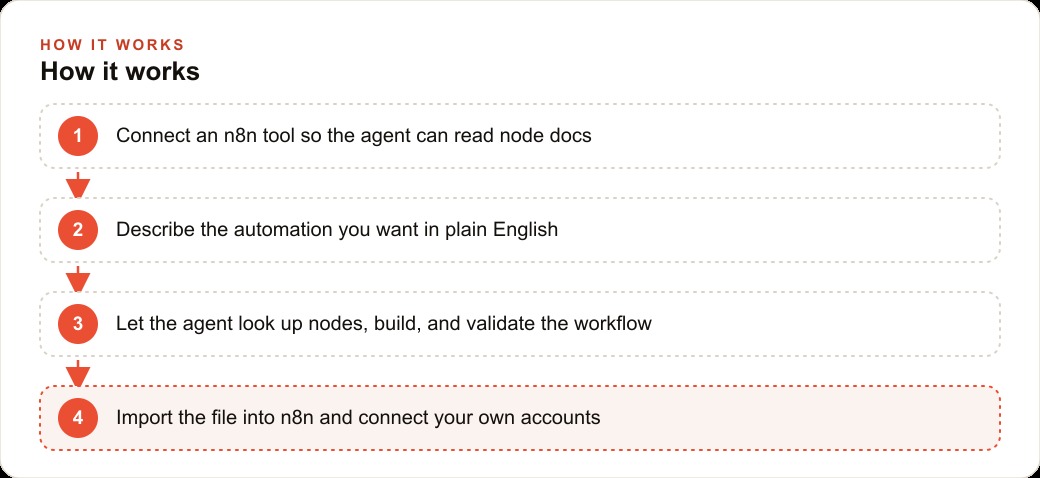
Both automations together take an afternoon to build using the process above: MCP server first, specific description, research phase, build, validate, import, connect credentials, test. The owner runs the business. The automations handle the first contact and the follow-up reminder. No lead goes cold because the crew was on a roof.
That is exactly what we do at AI DOERS. Book a private 30-minute call with Madhuranjan Kumar and we will map the fastest path to it for your specific business.
Book your call →
Madhuranjan Kumar
Madhuranjan Kumar brings 20 years of performance-marketing experience and has managed over $200 million in Facebook ad spend for brands across the United States and beyond. His expertise spans the full modern marketing stack: Meta, Google Ads, TikTok, email automation, CRM, and the websites that hold it together. At AI DOERS he turns that track record into lead-generation systems for businesses across every industry.